Editor guide
Build this week's menu, step by step
Each step below shows the editor doing exactly what the text describes. Read it once and you will know where everything is.
12 steps
Step 1
Create the week
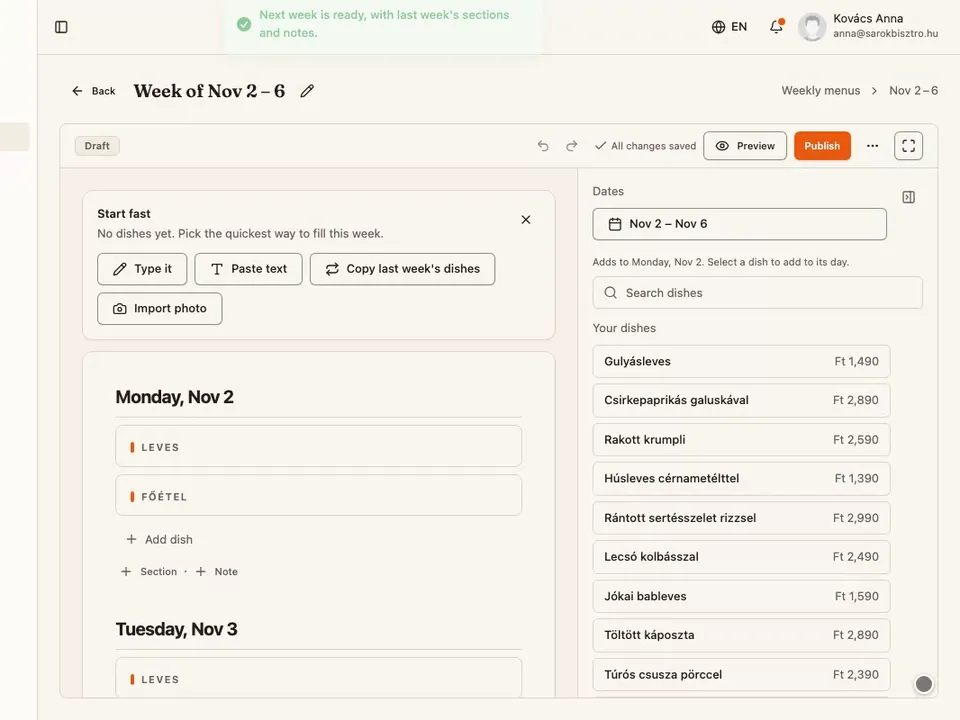
Open Menu → Weekly menus and press Create next week. The editor opens on Monday to Friday with each day's sections already in place, copied from your last week.
Tip: Need different dates, a holiday week say? Use Create for dates instead and pick the days.
Step 2
Add a dish with its price
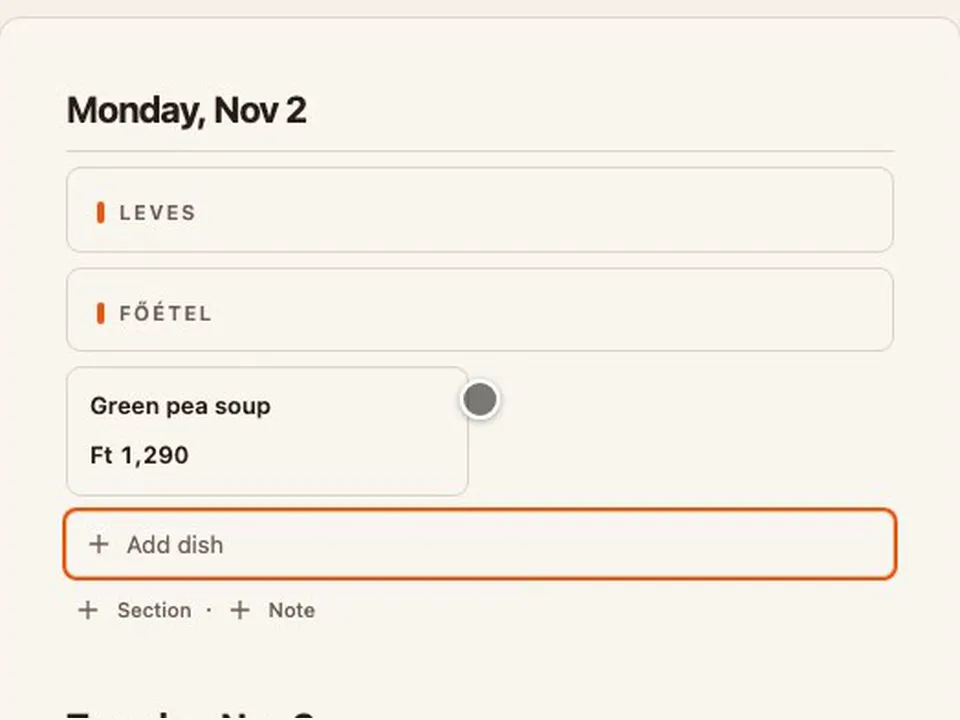
Click a day's Add dish box and type the dish with its price at the end, like "Green pea soup 1290". Press Enter and it lands on that day, the price read off the line, ready for the next one.
Tip: Press Shift+Enter to add the line exactly as you typed it, even when a suggestion is highlighted.
Step 3
Bring back a dish you have served
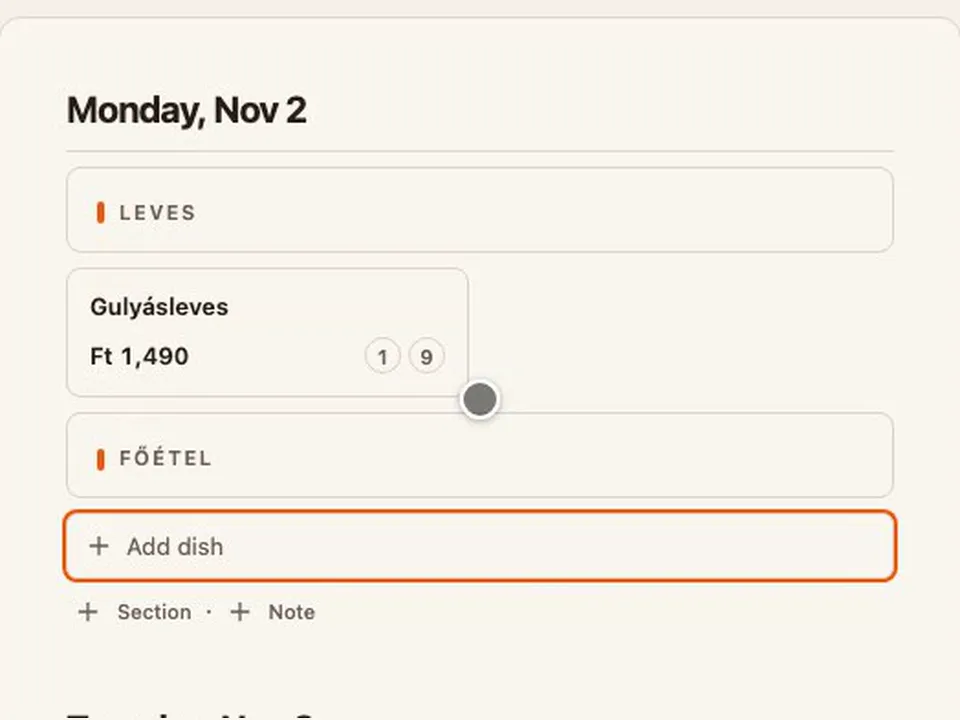
Every dish you add is remembered under Your dishes, from the moment you type it. Type the first few letters in a day's box and it is offered back with its price, allergens and photo. Enter takes it.
Tip: Three letters are usually enough. Tab moves on to the next day's box.
Step 4
Fill in the details
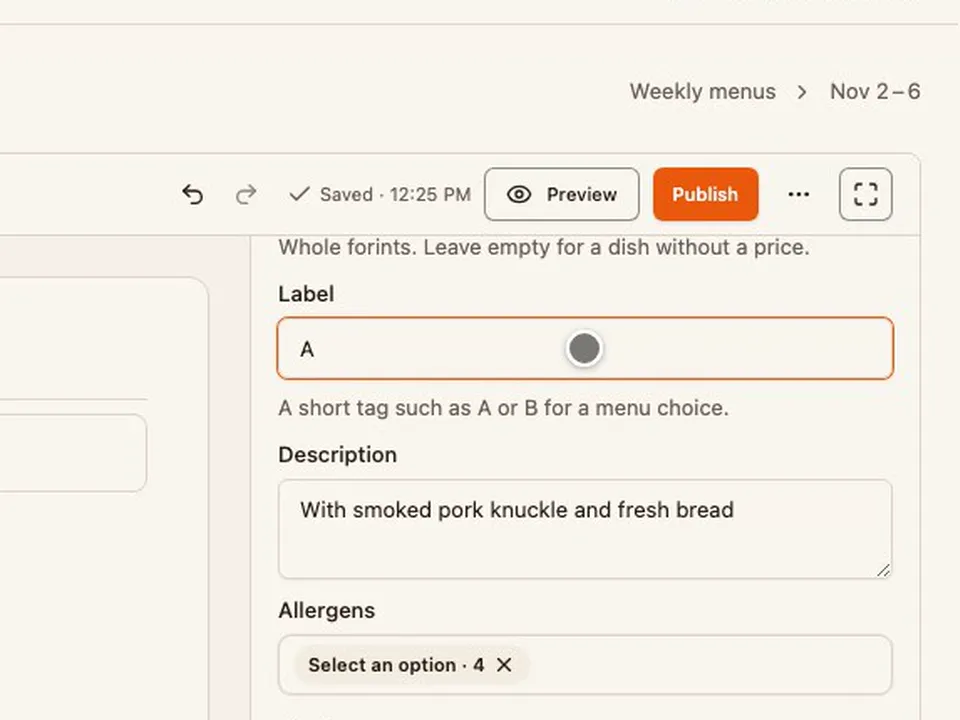
Click a dish and its properties open beside the menu: price, an A or B label for menu choices, a description, allergens and a photo.
Tip: Every change saves as you type. There is no Save button.
Step 5
Add sections and notes
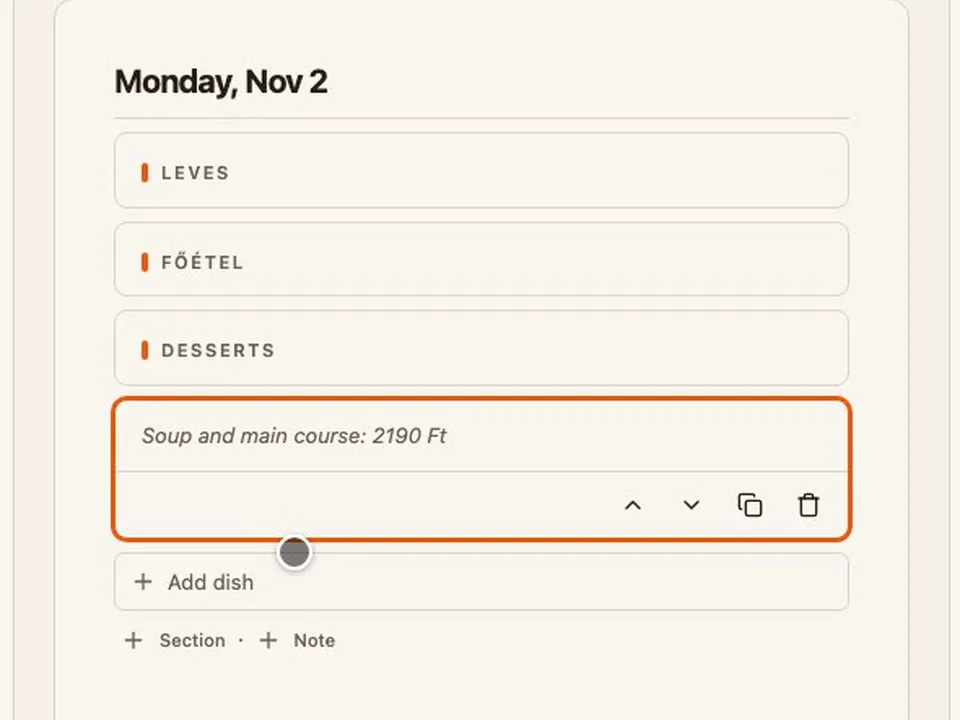
Under a day's add box, Section adds a heading, like Desserts, and Note adds a line of text, like the menu price. Each lands at the end of the day, ready for you to type over.
Tip: No need to type a section's title: Presets offers Soups, Mains and Desserts.
Step 6
Serve a dish on other days
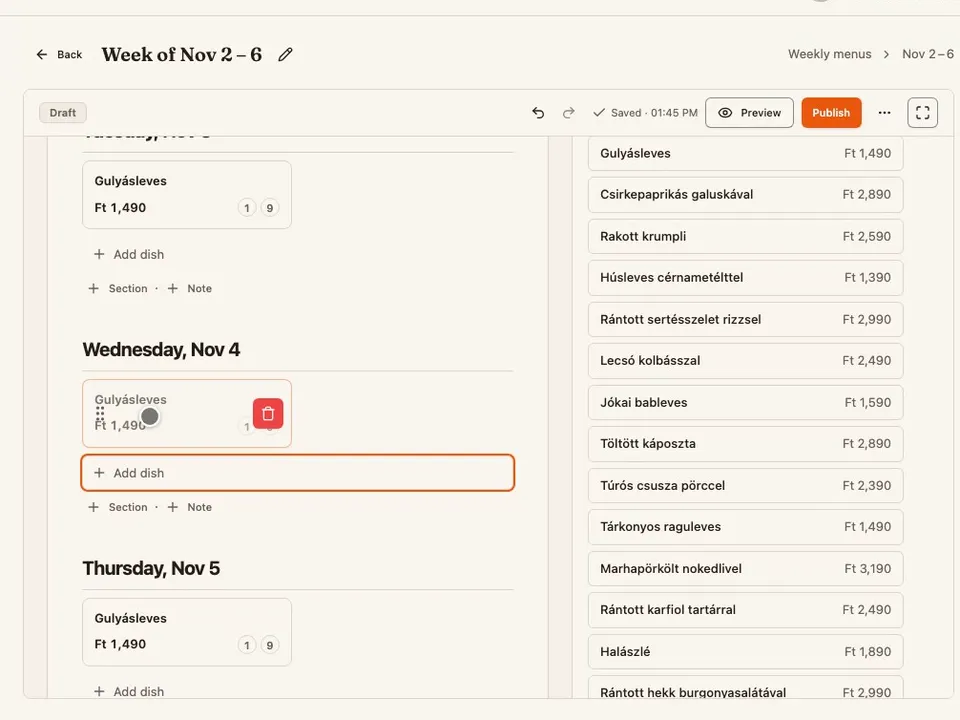
Select a dish and press days under Also on: each day gets its own copy, under the same course. A day with nothing on it offers Copy from the nearest earlier day with anything on it, and takes all of it.
Tip: Each copy is a dish of its own: change Tuesday's price and Monday's stays as it was.
Step 7
Start a week fast
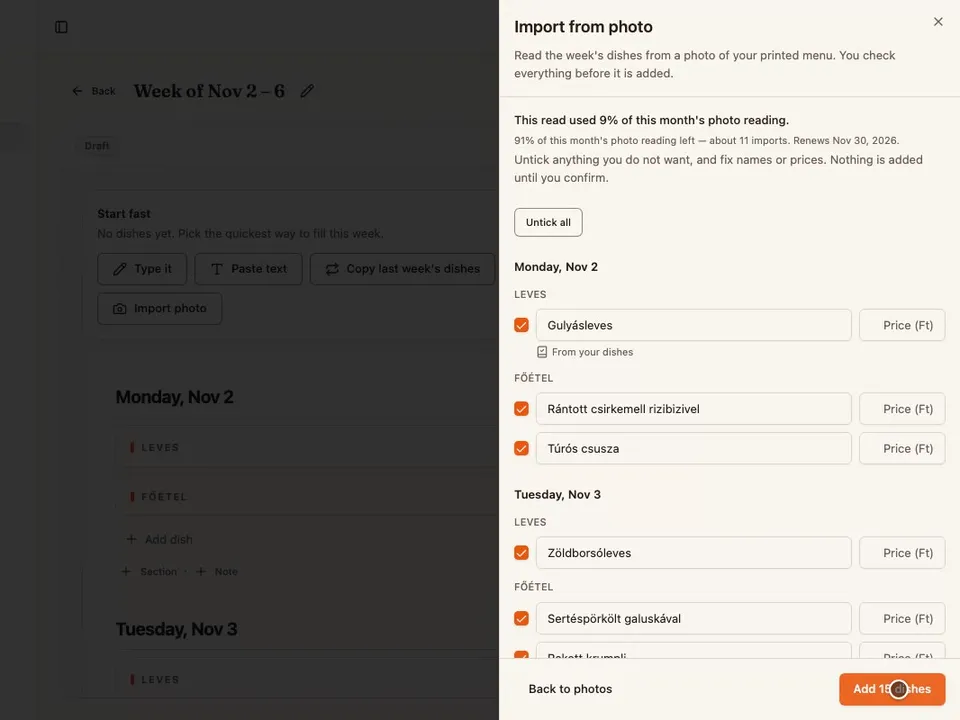
An empty week opens with Start fast. Copy last week's dishes puts last week's dishes back on the same weekdays. Paste text reads a menu you posted on Facebook or sent by email, and Import photo reads a photo of your printed menu. You check every dish before anything is added.
Tip: Copied the wrong week? Undo takes it all back in one step.
Step 8
Work from the keyboard
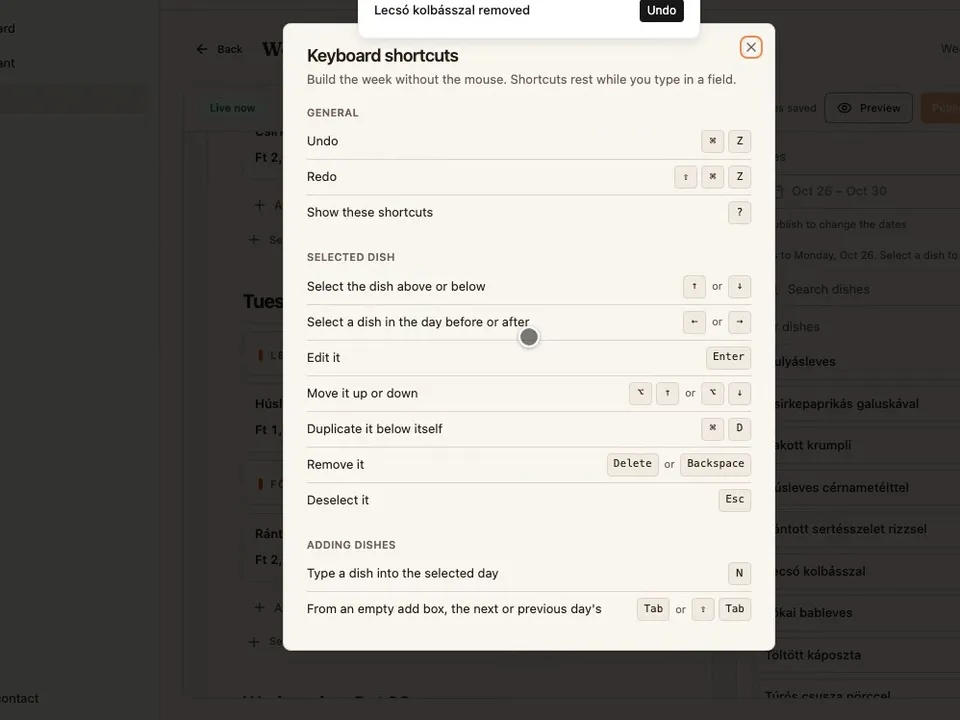
While you are not typing in a field, the arrows walk the menu: ↑ and ↓ within a day, ← and → to the day before or after. Enter edits the selected dish, Alt+↑ and Alt+↓ move it, Ctrl+D duplicates it below itself and Delete removes it. On a Mac, ⌘ stands in for Ctrl and ⌥ for Alt. N starts a new dish in the selected day.
Tip: Press ? for the whole list. Ctrl+Z (⌘Z on a Mac) undoes anything.
Step 9
Dishes you serve every day
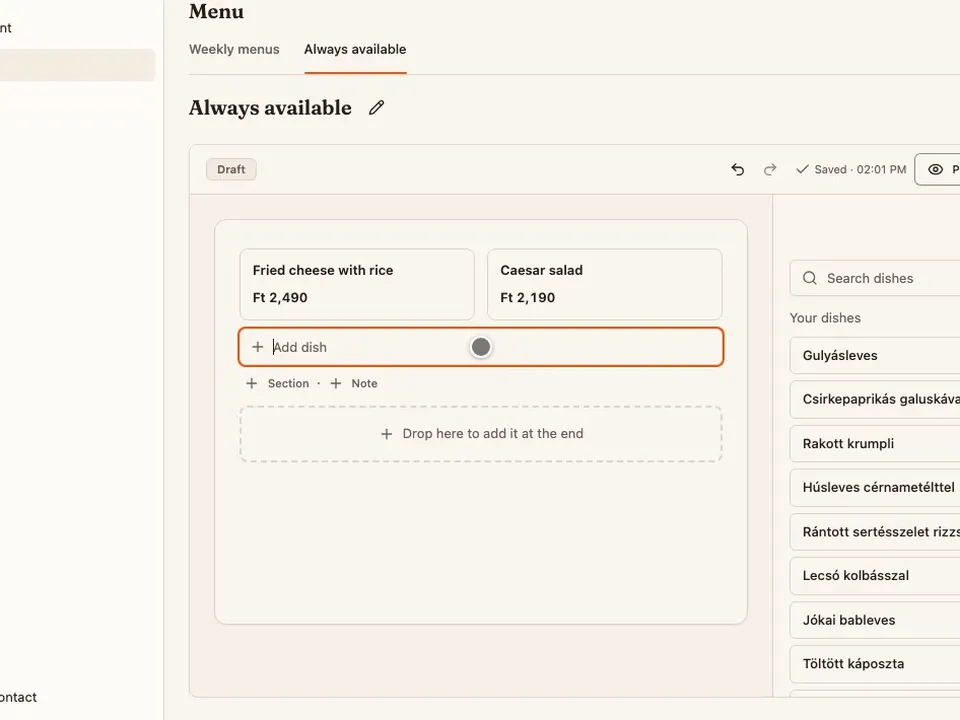
On the Menu page, the Always available tab holds the dishes you serve every day, like a pizza, a salad or a schnitzel. Add them the same way as a day's dishes, only with no days or dates. Publish them once and they stay from week to week.
Tip: A dish already on a week can move here: select it and choose Move to always available dishes.
Step 10
Choose your menu's colour
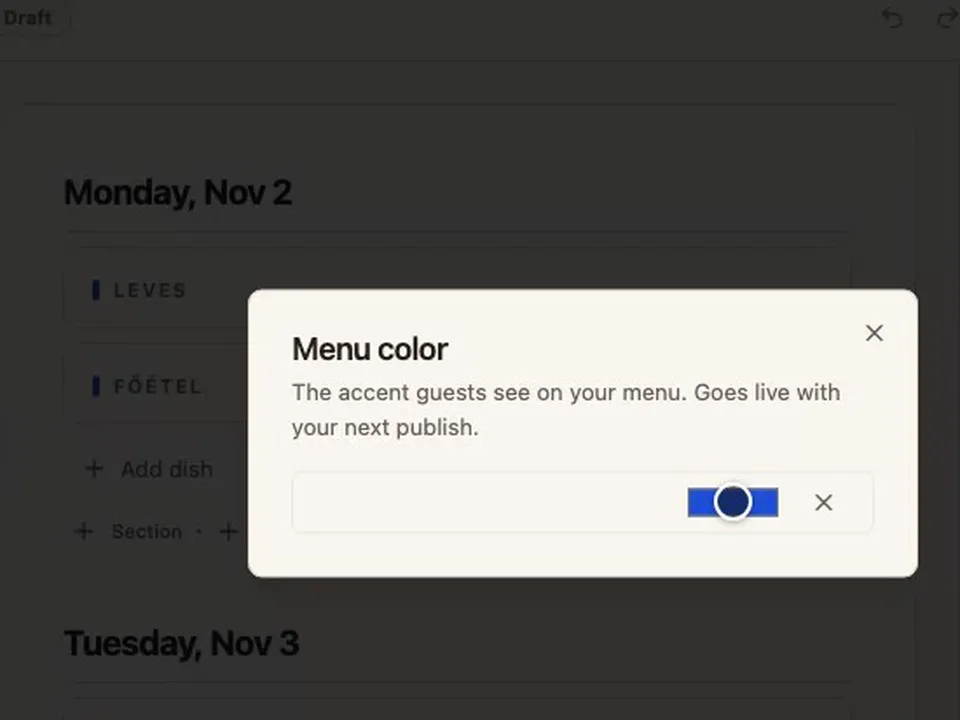
Open More actions (⋯) and choose Menu color. The colour you pick paints the menu straight away here in the editor, and reaches diners with your next publish.
Tip: Changed your mind? Use the default color, the × beside the colour, puts the default back.
Step 11
Preview what diners see
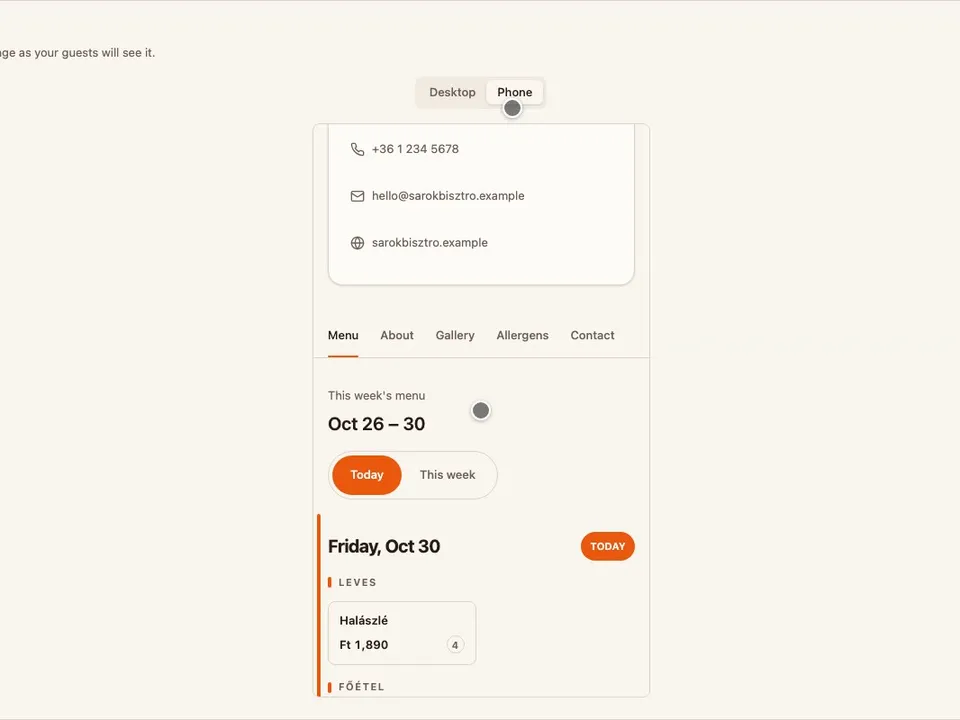
Preview opens your real menu page with this week on it, in your colour, before anything is published. Switch between Desktop and Phone to see it the way most diners will.
Tip: The preview also shows changes you have not published yet, so it is the place to check them.
Step 12
Publish and share
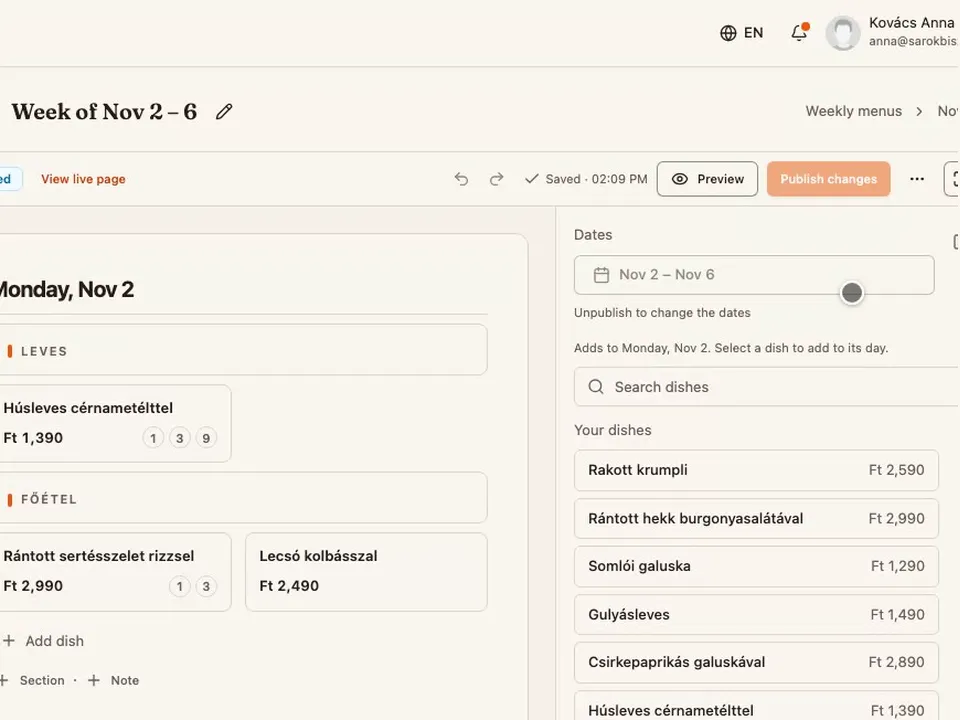
Press Publish and confirm: diners see the week on your page from its Monday. View live page then opens the page whose link you share, and More actions (⋯) → Export as image downloads the week as a picture for Facebook or your window.
Tip: Edits to a published week wait as a draft until you press Publish changes.
Try the editor on your own menu
Build a week without signing up. Nothing is published until you choose a plan.
Try it now